The Corporate Communications team needed a better way to intake, organize, and assign projects across multiple functional teams. Every element of our projects had multiple variables:
- Requests originated within our team, from executive leadership, from business partners, or from other departments in the company
- A project might last anywhere from a few days to a few years
- A project might have a single deliverable, multiple of the same type of deliverable, or a combination of different deliverables–and those deliverables may not be defined at the start of the project
- Each deliverable might be assigned to people from any combination of the copy, editorial, digital publishing, or design teams
- Every team had at least 1 person on long term leave during the year
- Different priority and visibility campaigns require different levels of approvals in our team, executive leadership, and the requesting team
- The full communications schedule should be visible at once for optimal scheduling
A formal task management system was the best solution, but the approval and setup process took about a year. In the interim, I was tasked with building something that could function as an editorial calendar with automated intake and assignment notifications.
My bespoke intake system started with a form. I gathered intake information from each team and consolidated them into a logical branching form that asked the requestor for the information relevant to their type of project. I made an automation in Power Automate that listened for form responses and recorded them in a MS List.

Most requests came from business partners, who had advisors aligned to them on each team. Whenever the alignment changed or someone went on leave, a new table was sent out via chat. I converted this table into a List that anyone on the team could update, meaning they could assign a backup (multiple people in one field) or replacement themselves without creating a whole new alignment table.
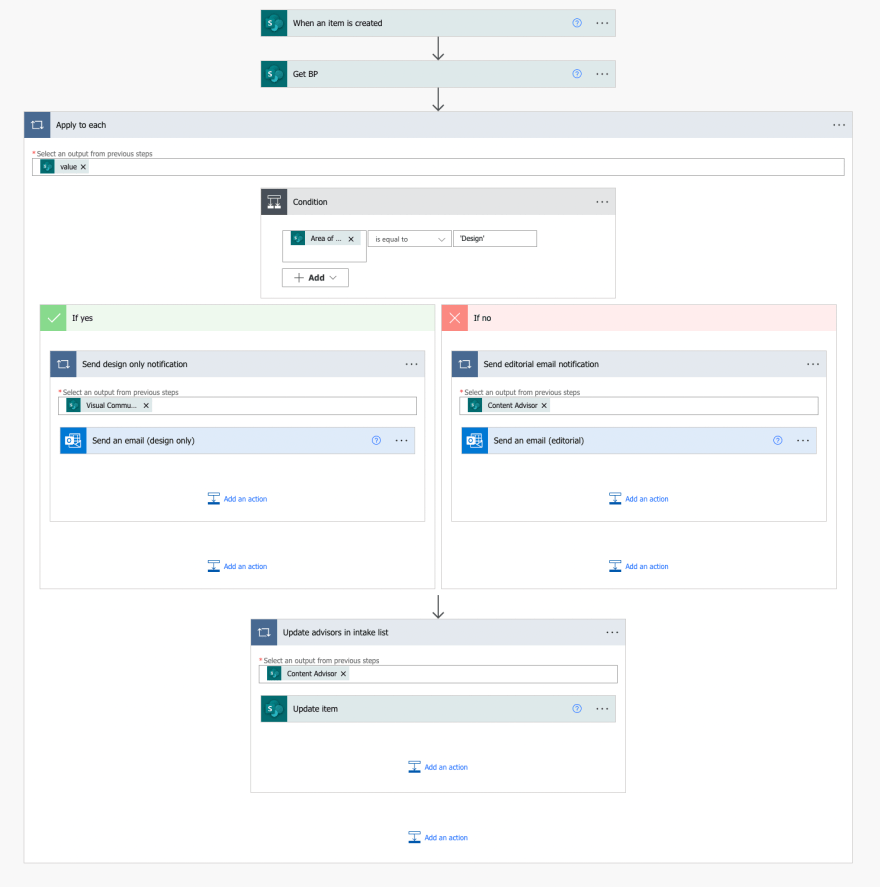
One of the first logic branches in the intake form asked what kind of support was needed. I added an automation that looked at the input from that question and the input from the department selection to determine which advisors were both aligned to and needed for the request, then sent them an email telling them that a new intake item came in. Because the business partner alignment was dynamic, it could be updated in a user-friendly environment (Lists) without making any changes to the more finicky and technical automation (PowerAutomate).
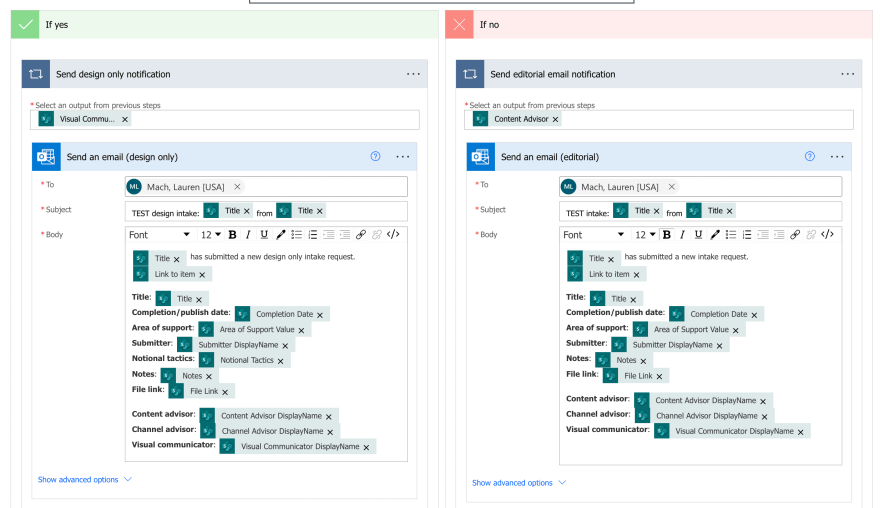
The notification emails were customized to each team using their input and feedback. The notifications included the most relevant details, members of other teams who were working on the project, and a link to the list item. The list item itself had everything submitted in the request as well as items added by team members and a comments section where the requester and advisors could comment and tag each other. Requesters also received an automated email with a link to their item and were automatically granted access (but could not view requests submitted by others).
The next hurdle was to create a notification system for reassignments. It was easy to set up a notification triggered by item creation, but harder to set up notifications for multi-assignment updates. I couldn’t use the item edit trigger, because it would send an email every time someone commented or uploaded a file, spamming the team and rendering the notifications useless.
Using a field-specific edit trigger also wasn’t sufficient, because everyone on a project needed to know anytime the assignment changed, not just if their own assignment changed. Prebuilt triggers also didn’t allow for multi-person assignments, and I wanted to retain the ability to assign a trainee or backup without removing the main advisor. Empty assignments, such as projects that didn’t have a design component and therefore lacked a design advisor, caused errors as well.
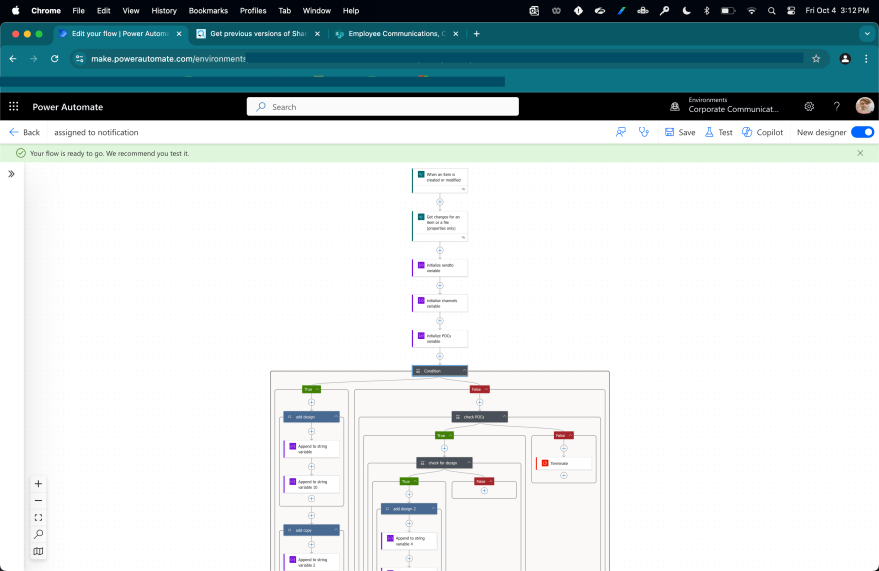
To get all the notifications I wanted without generating spam or fundamentally altering the system, I built a complex variable-based flow that checked separately for updates in each team and assignments in each team, then output a list of email addresses and a list of name/assignment pairs unique to that specific item update.
The emails were so well-received that the team started adding scheduling reminders and other rotating assignments and asking me to link resources in the reminder emails.

Managers used the list to track their employees’ workloads because they could easily filter by the assigned to field, and project managers created custom views to see all the deliverables related to their project at once. The deliverables were also vieweable in calendar format, which was used multiple times a week in meetings and to schedule high profile comms for maximum impact (not screenshotted for security reasons).
When we did eventually transition to Workfront, a professional task management tool, compliance with processes dropped. I advised on ways to tailor the notifications and dashboard to the employee workflow based on my experience building, adjusting, and managing this interim system.
 Lauren Mach
Leave a comment